
TL;DR
If you want a compact all-in-one dock for small desks, the right pick depends on whether your clutter comes from data and display cables, device charging cables, or both. Vertical docks like the Baseus Spacemate take up roughly the footprint of a coffee mug, under-desk mounts like the HumanCentric UnderDock use zero desk space, and multi-device wireless charging stations eliminate 3+ cables at once. This guide covers nine options across every budget, from $60 to $400, organized by how each one actually saves space rather than just listing port counts.
The Real Problem Isn’t Ports, It’s Desk Space
Cables multiply. Desk space doesn’t.
One XDA writer described his setup before getting a dock: a daily chain of adapters, including a USB hub plugged into another USB hub, a dongle for wired internet, and a dedicated card reader, all creating a mess of failure points across a small surface. Practitioners on Reddit echo this frustration constantly. As one work-from-home user put it, “I finally bought one, and now one cable connects everything: my monitors, keyboard, mouse, and a charger keeping my desk clutter-free.”
Here’s what most “best dock” articles get wrong: they assume everyone wants a compact all-in-one dock for small desks that handles Thunderbolt video and 10Gbps data transfers. Some people do. But plenty of others have a cable problem that’s really a charging problem, with separate cables for their phone, watch, and earbuds snaking across limited desk real estate. And a whole other group would benefit more from mounting their dock under the desk or using their monitor as the dock.
This guide covers all of it. Nine picks spanning USB-C hubs, Thunderbolt 5 docks, zero-footprint solutions, and wireless charging stations, organized by the space problem each one actually solves.
At-a-Glance Comparison
| Dock | Price | Ports | Footprint Strategy | Best For | Key Limitation |
|---|---|---|---|---|---|
| Multi-Device Wireless Charger | $59.99 to $69.99 | N/A (charging) | Single compact base | Apple users with charging clutter | Charging only, no data |
| Baseus Spacemate 11-in-1 | ~$100 | 11 | Vertical tower (2.5 x 2.5 in) | Budget Windows users | No PSU included |
| Anker Nano 13-in-1 | ~$110 to $150 | 13 (7 dock + 6 hub) | Compact base + detachable hub | Hybrid workers | macOS mirrors displays |
| Ugreen Maxidok 10-in-1 TB5 | ~$250 | 10 | Compact, built-in cable | TB5 early adopters | DisplayPort only |
| OWC Thunderbolt 5 Dock | ~$280 to $330 | 11 | 18cm wide chassis | Creative professionals | External PSU, premium price |
| CalDigit TS4 | ~$399 | 18 | Vertical or horizontal | Power users wanting max ports | TB4 (not TB5), expensive |
| Kensington SD5700T | ~$300 | 11 | Bracket-mountable under desk | Enterprise/office setups | Bulky if left on desk |
| HumanCentric UnderDock | ~$200 | 8 | Under-desk mount (zero surface) | Clean-desk purists | Single HDMI only |
| Satechi Dual Dock Stand | ~$150 | 9 | Under-MacBook (zero surface) | MacBook-only users | Mac-only, 2 displays max |
Quick Buying Guide: How to Choose Your Compact Dock
Before picking a dock, count your cables and sort them into two buckets: data and display cables (monitors, peripherals, external drives) versus charging cables (phone, watch, earbuds). Many small-desk users actually need two solutions, one for each type of cable clutter.
USB-C vs. Thunderbolt: when to pay more. USB-C docks ($60 to $150) handle most office tasks just fine. Thunderbolt 4 or 5 docks ($250 to $500) matter when you need multiple high-resolution displays, fast external storage access, or daisy-chaining. PCWorld’s 2026 docking station guide actually warns that premium Thunderbolt 5 docks might be overkill for a Windows PC. Save the money unless you have a specific bandwidth need.
Footprint strategies. Vertical docks shrink their footprint to a few square inches. Under-desk mounts eliminate surface use entirely. Under-laptop stands (like the Satechi) hide ports beneath a device you’re already using. Each approach suits different desk layouts.
Power delivery. Check your laptop’s charging wattage. Most productivity laptops need 45 to 65W. A 16-inch MacBook Pro wants 140W. If your dock can’t match your laptop’s needs, you’ll still need a separate charger on the desk, defeating the purpose.
Don’t forget the other cables. If you keep a multi-charging adapter kit or separate cables for every device, a wireless charging station might do more for your desk space than upgrading your Thunderbolt dock.
The 9 Best Compact Docks for Small Desks
1. Multi-Device Wireless Charging Station

Best for: Apple ecosystem users whose desk clutter is really a charging cable problem
Price: $59.99 to $69.99
Most compact dock articles ignore this angle entirely. But look at your desk right now. How many of those cables are just charging cables for your phone, watch, and earbuds? If you’re in the Apple ecosystem, a single multi-device wireless charging station replaces all of them.
The Voltiva Labs 5-in-1 Magnetic Wireless Charging Station ($59.99) charges an iPhone, AirPods, and Apple Watch simultaneously on one compact base using MagSafe-style magnetic alignment. The 6-in-1 Magnetic Wireless Charger Speaker ($69.99) adds a Bluetooth 5.4 speaker, touch night light, and alarm clock, replacing three or four separate desk items with one unit. Both include a 33W adapter in the box (no hidden power supply costs, unlike some data docks below).
Reddit discussions about Apple charging stations consistently recommend consolidating cables this way. Community feedback on multi-device chargers highlights that built-in cable integration is the key to actually reducing clutter rather than just relocating it.
Key features:
- MagSafe-style magnetic alignment for instant phone placement
- Simultaneous charging for iPhone, AirPods, and Apple Watch
- 6-in-1 version adds Bluetooth speaker, night light, alarm clock
- 33W adapter included
Tradeoffs:
- This is a charging dock, not a data or display dock. It won’t connect monitors, keyboards, or external drives.
- Apple ecosystem only (MagSafe alignment requires iPhone 12 or later).
- It solves the charging cable half of the desk clutter problem, not the port expansion half. Pair it with any data dock below for the complete solution.
2. Baseus Spacemate 11-in-1 USB-C Dock

Best for: Budget Windows users wanting a vertical, space-efficient dock
Price: ~$100 (Windows version); Mac version is nearly double
This is the dock that kicked off a popular r/desksetup thread that now ranks first on Google for compact dock queries. A Reddit user confirmed it “work perfectly” with a Surface Laptop Go 3 and is definitely compact enough for a small desk.
The reason it works on small desks: it stands vertically. The Spacemate is 4.5 inches tall, sitting square at about 2.5 inches on each side, with a 2.5-foot braided USB-C cable built in. That’s roughly the footprint of a coffee mug.
Key features:
- 2x HDMI, 2x DisplayPort, USB-C 10Gbps, 2x USB-A 10Gbps
- USB-A 2.0, 100W USB-C PD passthrough, Gigabit Ethernet, 3.5mm audio
- Vertical orientation as default position
- Sub-$100 price for the Windows version
Tradeoffs:
- Baseus does not include the cable or AC adapter needed to power the dock, which The Gadgeteer calls a “strange” choice. Budget for that separately.
- PCWorld notes that while it has “quirks you might just love,” its “subpar performance hurts its chances.”
- The Mac version is almost double the Windows version’s price, making it a poor value for Apple users.
3. Anker Nano 13-in-1 Docking Station
Best for: Hybrid workers who want a desk dock and a travel hub in one purchase
Price: Regularly $150, has hit $109.99 on sale at Amazon from Anker’s official storefront
This is the Swiss Army knife pick. The Anker Nano includes a compact desk dock and a detachable 6-port travel hub (8cm long, 1.4cm high) that snaps off when you leave. Basic Tutorials calls it “the Optimus Prime among docking stations” for its transformer-like modularity, noting that the workmanship is high-quality across all 13 ports.
Key features:
- Docked mode: 2x HDMI, 1x DisplayPort, USB-C 10Gbps, 3x USB-A, Ethernet, SD/TF, 3.5mm audio
- Detached hub mode: 6 ports for travel
- 100W PD passthrough (PCWorld confirms it gets close to rated output, suitable for high-end laptops)
- Compact power adapter included in the box
Tradeoffs:
- On macOS, all external monitors mirror the same content, meaning only one unique external display via HDMI or DisplayPort. This is a macOS limitation, not an Anker bug, but it matters.
- The detachable hub can physically block adjacent laptop ports on some models.
- At full price ($150), it competes with docks that have better single-monitor performance.
4. Ugreen Maxidok 10-in-1 Thunderbolt 5 Dock

Best for: TB5 early adopters who want a genuinely compact Thunderbolt dock
Price: MSRP $299.99, currently $249.99 at launch pricing
If you want a compact all-in-one dock for a small desk and your laptop has Thunderbolt 5, this is the smallest TB5 option available right now. The built-in cable (rather than a detachable upstream port) keeps the form factor tight.
Key features:
- Thunderbolt 5 upstream, 2x TB5 downstream, DisplayPort 2.1
- 2x USB-A, SD/TF card slots, Gigabit Ethernet
- Future-proof TB5 bandwidth for high-resolution displays and fast storage
- Compact chassis relative to other Thunderbolt docks
Tradeoffs:
- Macworld calls it “decent and nicely compact” but finds “numerous oddities perplexing and sometimes off-putting.” Specifically: no HDMI (DisplayPort only), no spare USB-C port, and no audio jack.
- The built-in cable limits flexibility if you want to position the dock far from your laptop.
- Only 1Gb Ethernet, which feels outdated at this price tier.
- Power delivery is weak for larger laptops.
5. OWC Thunderbolt 5 Dock (11-Port)
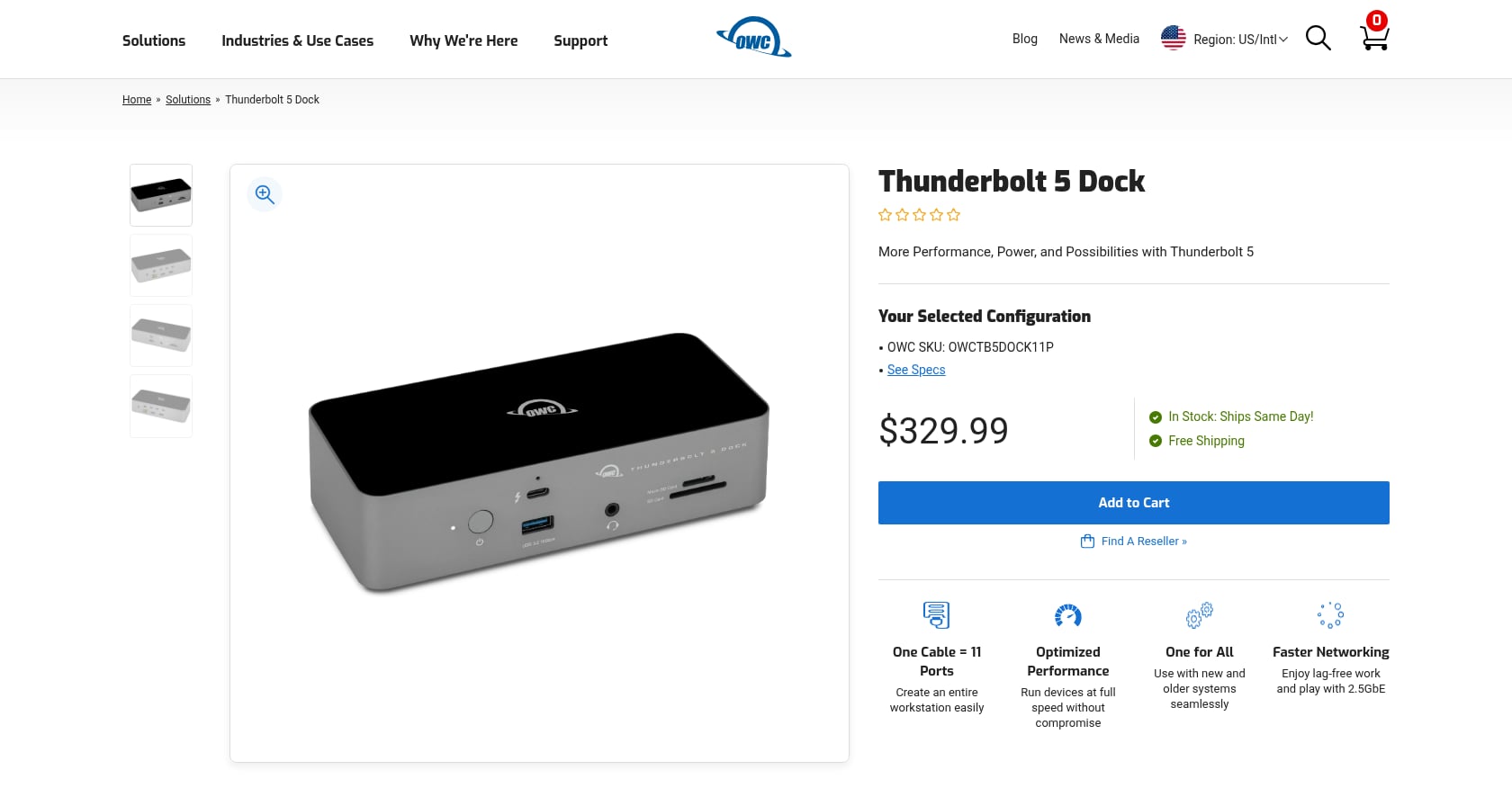
Best for: Creative professionals wanting a future-proof, compact Thunderbolt 5 dock
Price: $329.99 retail, seen at $279.99 on sale at Sweetwater with $50 instant savings
This is the dock the XDA author (whose article ranks in Google’s top results for this topic) chose for his own setup. He reported that everything springs to life with one cable and that the new model is significantly smaller than the previous generation, measuring only about 18 centimeters across with densely packed I/O.
The 9to5Mac reviewer confirmed it “fits better in my desk setup” with “wired Ethernet, keyboard and mouse, external SSD and external display all going through this one box.”
Key features:
- 3x TB5/USB-C, 3x USB-A (two 10Gbps, one 5Gbps)
- SD 4.0 UHS-II and microSD card slots
- Gigabit Ethernet, 3.5mm audio
- Up to 140W laptop charging (enough for a 16-inch MacBook Pro)
Tradeoffs:
- Premium price, even on sale, for the feature set.
- External power supply adds bulk somewhere (under desk, behind monitor, etc.).
- No HDMI, only Thunderbolt/DisplayPort video output. If your monitor only has HDMI, you’ll need an adapter.
If you use your laptop alongside a dock for multitasking, a magnetic laptop phone holder keeps your phone visible without occupying additional desk space.
6. CalDigit TS4 (18-in-1 Thunderbolt 4)
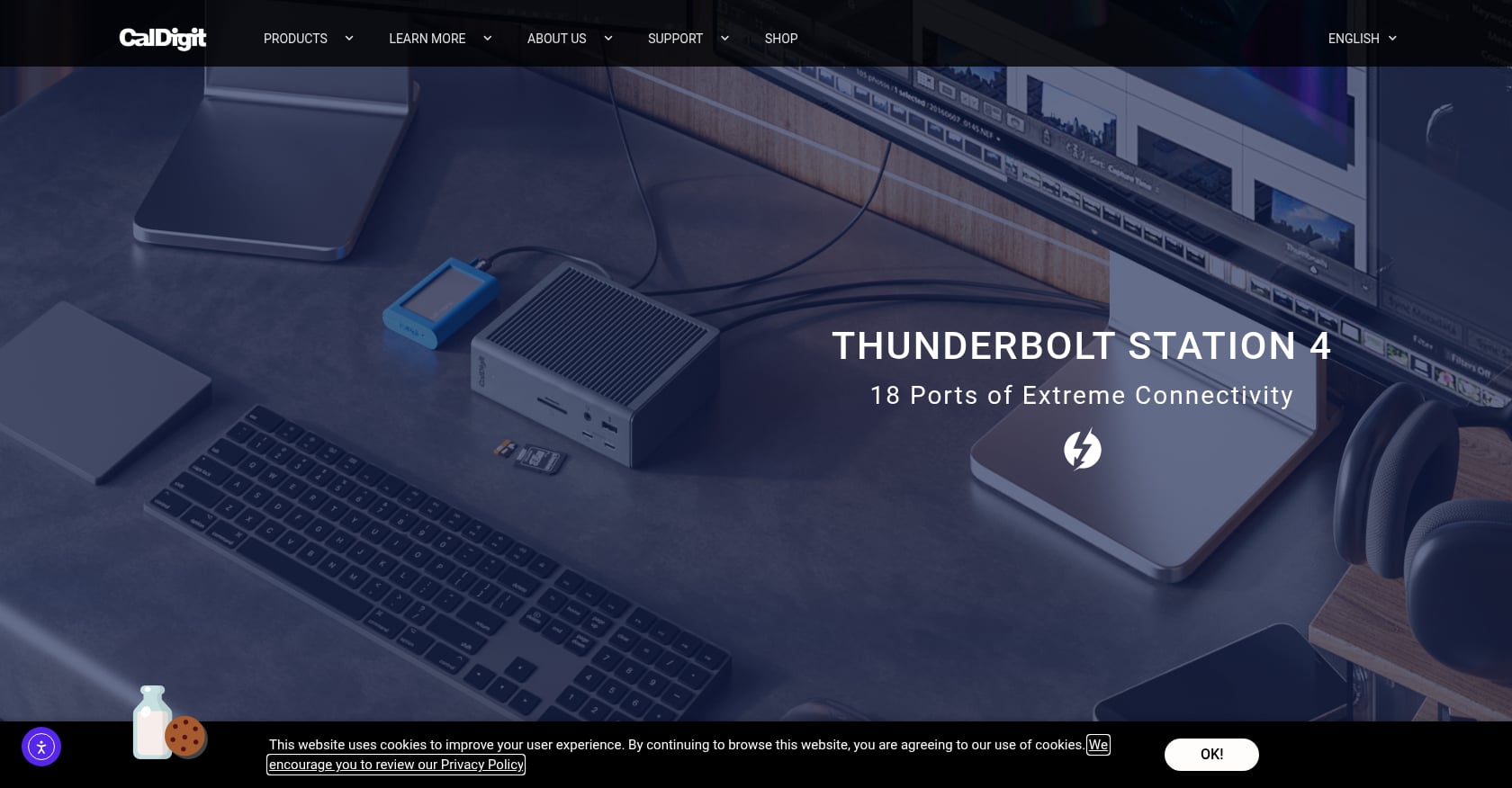
Best for: Power users and content creators who need maximum connectivity and proven reliability
Price: ~$399
The CalDigit TS4 is the dock Reddit keeps recommending for Mac users. The community aggregator RedRecs summarizes sentiment as “CalDigit TS4 premium king for Mac/TB4,” and a detailed Medium review from 2025 states it’s “simply the best Thunderbolt dock available.”
What makes it work on small desks: Macworld praises its “flexible vertical or horizontal format”, a hallmark of CalDigit’s design philosophy. Standing upright, it takes up minimal surface area while offering more ports than any other dock on this list.
Key features:
- 18 total ports: 3x TB4, 3x USB-C, 5x USB-A, 2.5GbE Ethernet, SD UHS-II, 3.5mm audio
- Supports 8K single display or dual 6K displays
- 98W laptop charging
- Vertical or horizontal orientation
Tradeoffs:
- At ~$399, it’s a significant investment. The newer CalDigit TS5 Plus runs $499 if you want TB5.
- This is Thunderbolt 4, not TB5, meaning it’s a generation behind for anyone thinking about future-proofing.
- The power supply is external and large.
7. Kensington SD5700T Thunderbolt 4 Dock
Best for: Office and enterprise users who want a lockable, mountable dock
Price: ~$300
The Kensington SD5700T is the pick for anyone whose small desk problem is best solved by getting the dock off the desk entirely. Windows Central highlights its “bracket mounting options” and two Kensington lock slots, calling it “an ideal Thunderbolt 4 dock for a public office where ample desk space isn’t a luxury.”
Practitioners on Reddit’s r/macsetups thread take this further, recommending custom 3D-printed brackets for mounting docks under any desk. One user suggested: “If you have a 3D printer there are models that fit the dock.” This DIY approach works for any dock, but the SD5700T is the only one here designed for it out of the box.
Key features:
- 11 ports with a 180W power supply
- Aluminum chassis with grippy feet for on-desk use
- Bracket-mountable for under-desk installation
- Two Kensington lock slots for security
Tradeoffs:
- If you leave it on the desk, it’s not particularly compact.
- Enterprise pricing for what amounts to a TB4 dock (TB5 alternatives exist at similar prices).
- The 180W power supply brick is large.
8. HumanCentric UnderDock

Best for: Clean-desk purists who want absolutely nothing on the surface
Price: ~$200 (includes 87W wall charger)
This is the most literal answer to “I want a compact all-in-one dock for my small desk.” The HumanCentric UnderDock mounts entirely beneath your desk, leaving zero footprint on top. You reach down, plug in one USB-C cable, and everything connects.
Amazon reviewers praise it: “Awesome product that minimizes all the cables you typically see in office desk setup. So easy to plug one thing in and everything works.”
Key features:
- Front-accessible: USB 3.0, USB 2.0, SD and Micro SD card readers
- Rear (permanent) connections: 2x USB-C PD, HDMI, Ethernet, USB 3.0
- Includes 87W wall charger in the box
- Tool-free mounting hardware
Tradeoffs:
- Single HDMI is the only video output. No DisplayPort, no Thunderbolt passthrough. If you need dual monitors, this won’t do it alone.
- The cable is flat rather than round, making it harder to cable-manage under the desk (ironic for an under-desk dock).
- The metal chassis is surprisingly heavy, requiring solid mounting.
- Limited port selection compared to docks at this price point.
9. Satechi Dual Dock Stand

Best for: MacBook users who want hidden port expansion with zero additional desk space
Price: ~$150
The cleverest space-saving design on this list. The Satechi Dual Dock Stand sits beneath your MacBook, using the laptop’s own footprint as its desk real estate. Macworld calls it “a neat, zero-footprint docking station that matches your MacBook for style and adds nine useful ports.” Laptop Mag adds that it “manages to condense your workspace with its multi-functionality.”
Key features:
- 9 ports including USB-C, USB-A, HDMI, and SD card
- NVMe SSD enclosure slot for built-in storage expansion
- Raises MacBook slightly for better airflow
- Matches MacBook aesthetic in aluminum finish
Tradeoffs:
- MacBook-only. Won’t work with Windows laptops due to the form factor and dual USB-C connection design.
- Limited to 2 external displays.
- Requires using the MacBook’s own keyboard and trackpad (since the laptop sits on top of the dock, you’re using it in laptop mode, not clamshell).
Bonus Tips: Get Even More From Your Small Desk
Orient your dock vertically. Even docks not specifically marketed as vertical can often stand on their side. Eneba Hub advises orienting docks vertically “to reduce footprint and improve airflow without sacrificing port access.”
Your monitor might already be a dock. XDA published a dedicated article arguing that monitors with built-in USB hubs can replace standalone docks. The key insight: “Unlike a desk dock where cables sprawl horizontally, a monitor hub allows you to route cables vertically down the monitor stand” using gravity as an ally. If you’re buying a new monitor anyway, look for one with USB-C input and a built-in hub.
Charge your phone through your mouse pad. A wireless charging mouse pad lets your phone charge while you work without adding any cables or surface clutter. It’s one of those small changes that eliminates a cable you didn’t realize was bothering you.
Add light without adding clutter. If your small desk feels cramped partly because of a bulky desk lamp, consider wall-mounted RGB LED hexagon lights that free up desk real estate while improving your workspace ambiance.
Conclusion
Finding the right compact all-in-one dock for a small desk comes down to diagnosing the actual problem. If your clutter is data and display cables, a vertical USB-C or Thunderbolt dock consolidates them to a single connection. If your clutter is charging cables, a wireless charging station eliminates them entirely. If your clutter is the dock itself, mount it under the desk or use your monitor’s built-in hub.
The most effective small-desk setup combines two of these approaches. A data dock (like the Baseus Spacemate or OWC TB5) handles your monitors and peripherals, while a 5-in-1 wireless charging station or 6-in-1 charger with speaker handles your devices. Together, they can reduce a tangle of six or seven cables down to one or two.
Small desks don’t need fewer features. They need smarter consolidation.
Frequently Asked Questions
What’s the difference between a USB-C dock and a Thunderbolt dock?
USB-C docks use the standard USB protocol and typically cost $60 to $150. They handle basic multi-monitor setups, USB peripherals, and Ethernet just fine for most office work. Thunderbolt docks (TB4 or TB5) use Intel’s higher-bandwidth protocol over the same USB-C connector, supporting faster data transfer, more displays at higher resolutions, and daisy-chaining. They cost $250 to $500. Unless you’re editing video, running multiple 4K+ monitors, or need fast external storage access, USB-C is enough.
Can I use a Thunderbolt dock with a laptop that only has USB-C?
Yes, but with reduced functionality. Thunderbolt docks are backward-compatible with USB-C, so they’ll work for basic tasks like USB peripherals and single-monitor output. You won’t get the full Thunderbolt bandwidth, multi-display support, or daisy-chain capability. At that point, you’re paying Thunderbolt prices for USB-C performance, so a USB-C dock makes more sense.
Why do some docks not include a power supply?
Cost cutting, mostly. The Baseus Spacemate is a notable example where reviewers discovered that neither the USB-C cable nor the AC adapter is included. Always check the “what’s in the box” section before buying, and factor in $20 to $40 for a compatible power supply if one isn’t included.
Do compact docks overheat on small desks?
Thermal management varies. Vertical docks generally have better airflow than horizontal ones because heat rises naturally along the chassis. Metal-bodied docks (like the Kensington SD5700T and CalDigit TS4) dissipate heat better than plastic ones. If your dock will be enclosed in a tight shelf or cubby, look for active cooling or aluminum construction.
What’s the best way to mount a dock under a desk?
The Kensington SD5700T includes official bracket mounting hardware. For other docks, practitioners on Reddit’s r/macsetups recommend 3D-printing custom cradles (search Thingiverse for your dock model). Alternatively, adhesive-backed cable management trays or Velcro strips can hold smaller docks securely underneath a desk surface.
Can a wireless charging station replace a traditional dock?
No, they solve different problems. A wireless charging station like the Voltiva Labs 5-in-1 eliminates phone, watch, and earbud charging cables. A data dock connects monitors, keyboards, mice, and external storage. For a truly clean small desk, many people benefit from both: one data dock and one wireless charging station.
Are compact docks powerful enough for dual monitors?
Most docks on this list support at least dual 4K displays, though the specific resolution and refresh rate depend on both the dock and your laptop’s capabilities. The key limitation is macOS: many USB-C docks (including the Anker Nano 13-in-1) mirror all external displays on Mac rather than extending them independently. If you’re on a Mac and need dual extended displays, stick with a Thunderbolt dock or use a DisplayLink workaround.
Is Thunderbolt 5 worth the premium over Thunderbolt 4 in 2026?
For most people, not yet. TB5 doubles the bandwidth to 80Gbps (120Gbps in asymmetric mode), which matters for 8K displays and ultra-fast external storage. But as PCWorld points out, premium TB5 docks might be overkill for typical Windows PC use in 2026. Unless your laptop already has a TB5 port and you have a specific use case that demands the bandwidth, a TB4 dock at $100 to $200 less will serve you well for years.